
1. What automated customer onboarding means here
"Customer onboarding" means different things to different people. For a customer success team it is the welcome email, the kickoff call and the training. For a bank it is identity checks on a person. This guide is about neither. It is about the moment a business becomes your customer and you need to know which business that is.
Every B2B company has that moment. Someone signs up for your software, requests a quote, opens an account or applies to be a supplier. From that moment on you need their company details: the legal name, the registration number, the registered address, the legal form, the size, the industry. Sales wants to know if the lead is worth a call. Finance wants a correct invoice address. Compliance wants to know the company exists. Product wants to know what kind of company it is.
Automating this means one thing: nobody types those details. The customer types their company name, your system looks it up in the official company register of their country, and every field fills itself. That is the whole idea. The rest of this guide is about when to do it, where to do it, what you get, and how to build it.
2. When it is worth automating, and when it is not
Be honest about your numbers. If three companies sign up a week, a person can look them up and type the details in ten minutes. Automating that saves nobody anything. The moment to automate is when onboarding becomes a steady stream: tens of new business customers a day, every day, sometimes hundreds. Then typing is a job, checking is a second job, and deciding who gets a call is a third.
| New business customers | What happens today | What to do |
|---|---|---|
| A few per week | Someone looks each one up and types the details in | Keep doing that. Automating costs more than it saves. |
| A few per day | Details come in late or half-filled; sales calls leads blind | Automate the back office: enrich each new account the moment it is created. |
| Tens per day | A person or a team spends their day on lookups and lead qualification | Automate the back office and score every account. The scoring team becomes a rule. |
| Hundreds per day | Nobody can keep up; bad records pile up in the CRM | Automate the form too: let customers pick their company from a list as they type. |
Companies used to solve this with people. A lead qualification team, sometimes called a lead scoring team, would go through new signups one by one, look the company up, and decide who gets a call. That was the only option, because building the automation needed developers and weeks of work. That is no longer true. With a coding agent and an API key, one person can build the same thing in an afternoon. Section 7 shows how.
3. Where to automate: in the form or in the back office
There are two places where company details can be filled in automatically. Most companies do the second one first.
In the back office, after the signup
The customer fills in your normal form: name, work email, company name. When the signup becomes an account, your system looks the company up in the register and adds every detail to the record in your CRM or admin system. The customer notices nothing. This is where most companies start, because it changes nothing on the website and works for every signup you already have.In the form, as they type
The company name field becomes a search box. The customer types a few letters, picks their company from a list, and the registration number, address and legal form appear in the form. This is the nicer experience: customers do not have to know their registration number, and they cannot mistype their own address. It is worth doing once you have real volume, or when your form asks for details customers would otherwise have to look up.
4. What the register gives you, field by field
A company register is the official list of companies in a country: the Handelsregister in Germany, Companies House in the United Kingdom, the KVK in the Netherlands. When a company is in it, the register knows a fixed set of facts about it. These are the fields you get back, and what each one is good for.
| Field | What it tells you | Who uses it |
|---|---|---|
| Registration number | The company really exists and is registered in a local register. One number, no duplicates. | Compliance, finance (invoices), everyone who deduplicates records |
| Legal form | Is it a limited company, a partnership or a sole trader? Sole traders and partnerships are the person; limited companies are not. | Compliance, finance, sales (who can sign) |
| Registered address | The official address, spelled the way the register spells it. No typos, no PO box the customer made up. | Finance, logistics, your CRM |
| Phone number | The company's main number, as filed. | Sales, support |
| Employees | How big the company is. Ten people and ten thousand people need different things from you. | Lead scoring, sales routing, pricing tiers |
| Revenue | What the company turns over per year. The clearest signal of whether they can pay for what you sell. | Lead scoring, sales routing, credit decisions |
| Industry | What the company does, as a standard code (SIC, NACE or the local equivalent) with a description. | Segmentation for sales and product teams, marketing, lead scoring |
| Corporate group | Is this a branch, a subsidiary or the headquarters? Who is the parent? | Enterprise sales, compliance, deduplication |
Two of these do most of the work. Revenue and employees are what you score on: they say whether a new account is a small shop or a large buyer. Industry is what you segment on: it tells sales which pitch to use and tells product which features matter to this customer. Both are facts from the register, not something the customer picked from a dropdown.
The register does not know everything. It knows the company; it does not know the person who signed up. Their name, their work email, their role: those stay with the customer. Section 8 covers which fields to leave alone.
5. See it work: the form fills itself
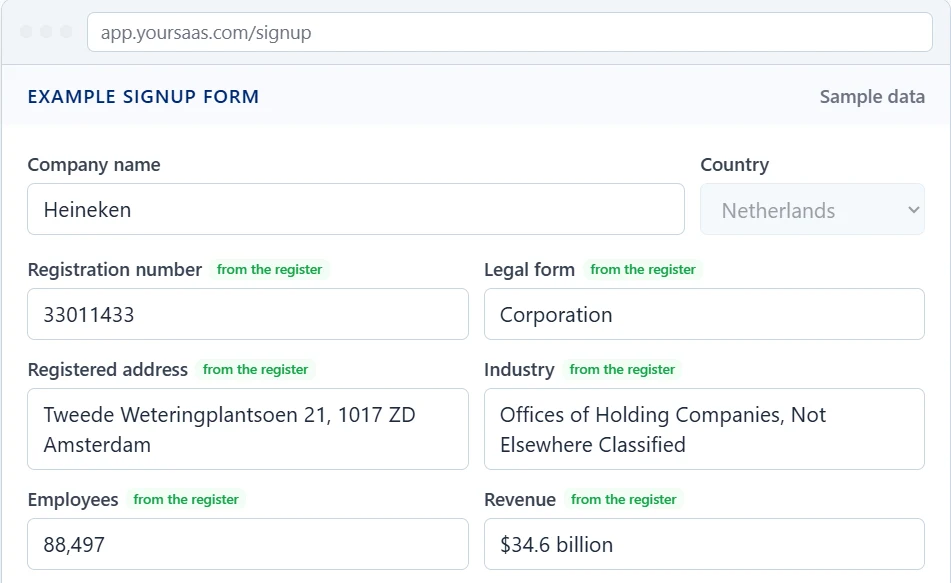
Below is an example signup form. It is not ours, and you do not have to fill it in. Watch it: the company name gets typed, a list appears, a company is picked, and the official fields fill themselves. The fields the user still types stay grey. Where the submit button would be, you see what would land in your CRM, with a lead score. When it is done, you can try it with any real company.
Notice what the form does not ask. No registration number, no address, no "how many employees" dropdown. The customer types one thing and confirms one thing. Everything that is public record comes from the register, with the spelling the register uses.
People sometimes ask why not use Google's address autocomplete for this. It is a fair question, because many forms already have it. The answer is that Google finds places, not companies. Here is what Google's own sample page returns for Heineken in Amsterdam:
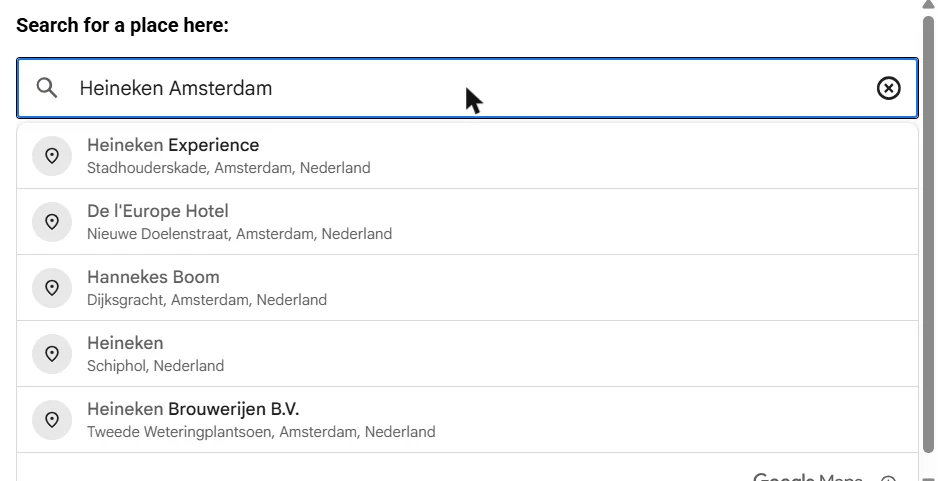
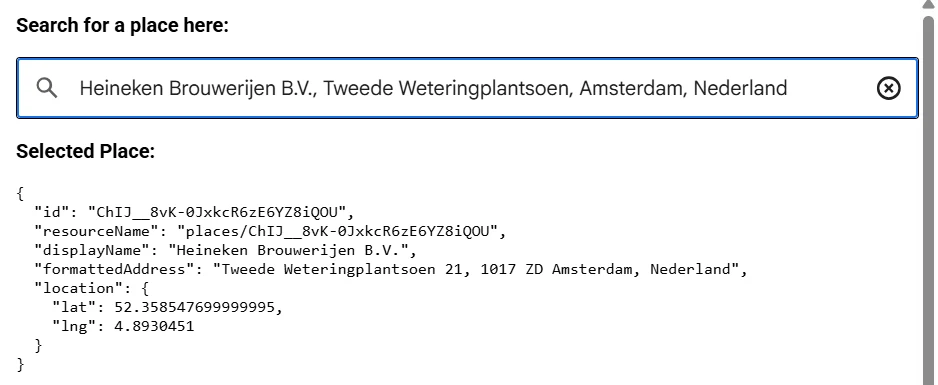
That is fine for a delivery address. It is not a company. A register lookup gives you the legal entity: one registration number, one legal form, one registered address, and the size and industry on top. The developer walkthrough in company search and autocomplete shows the lookup with code.
6. Lead scoring without a scoring team
Lead scoring sounds like something that needs a data scientist. It does not. Scoring on company facts, which people in marketing call firmographic scoring, is four or five rules that anyone can read. The demo above uses these:
| Rule | Points | Why |
|---|---|---|
| Found in the official register | +25 | The company exists. Not a test account, not a typo. |
| 10 or more employees / 50 or more | +20 / +35 | Bigger companies need more seats, more licences, more of whatever you sell. |
| Revenue above $1 million / above $10 million | +20 / +30 | They can pay. Revenue is the single best signal of budget. |
| Industry known | +10 | You can route them to the right person and the right pitch. |
Add them up. Above 70 is a hot lead: a sales person calls today. Between 40 and 70 is warm: it goes into a nurture sequence. Below 40 is self-serve: the product takes care of them. Three buckets, no meetings. Change the thresholds when you learn what your real customers look like, for example by comparing the scores of the deals you won last year.
The whole scoring rule, as code
function leadScore(company) {
  let score = 0;
  if (company.registrationNumber) score += 25;
  if (company.employees >= 50) score += 35;
  else if (company.employees >= 10) score += 20;
  if (company.revenueUsd >= 10_000_000) score += 30;
  else if (company.revenueUsd >= 1_000_000) score += 20;
  if (company.industry) score += 10;
  return Math.min(score, 100);
}
The industry field earns its keep twice. Besides the ten points, it lets you segment: every new account gets a label like "software", "construction" or "retail" from the register's industry code. Sales can route a construction company to the person who knows construction. Product can see which industries actually use a feature. None of that needs the customer to pick an industry from a list they do not understand.
Keep one thing in mind: industry codes differ per country. The register gives you the local code (SIC in the US and UK, NACE in most of Europe, SBI in the Netherlands) plus a description. For segmentation the description is usually enough. If you want one code across countries, map to the NACE code.
7. Build it with a coding agent in an afternoon
This used to be a project. Now it is a conversation with a coding agent such as Claude Code, Cursor or Replit. You describe what you want, the agent writes the code, you test it. Here is the whole path.
Get an API key
Create an account on the company data API and copy your key from the dashboard. New accounts get a 7-day free trial with 500 searches, which is plenty to build and test with. Keep the key out of your code; put it in an environment variable calledCOMPANYDATA_API_KEY.Paste this prompt into your coding agent
Change the framework and the CRM to what you use. The agent will read our documentation itself.Check what it built
You should get two things: a small server route that calls the API with your key, and a company name field that talks to that route. The browser never sees the key. If the agent put the key in the front end, tell it to move it to the server. That is the one thing to check.Match on name, confirm on number
Most teams match on the company name the customer typed, because that is what customers know. The search returns the best matches with their registration number. If you want an extra check, ask the customer to confirm the registration number you found, or let them type it when they have it. A name finds the company; the number proves it is the right one.Go live, then add the back-office step
Once the form works, add the second lookup: when a signup becomes an account, fetch the full record and write employees, revenue, industry and group into your CRM. For HubSpot there is a ready-made HubSpot app that does this on the company record. For other CRMs the agent can wire it through the API, or through Zapier, Make or n8n. Setting up the CRM itself? See our CRM onboarding guide.
Prompt for your coding agent
Add company autocomplete to our signup form.

Stack: Next.js (App Router). CRM: HubSpot.
API: CompanyData.com, docs at https://companydata.com/api-docs/
Endpoints: GET https://app.companydata.com/api/company/search (suggestions)
           GET https://app.companydata.com/api/company/export (full record)
Auth: header "x-api-key", value from process.env.COMPANYDATA_API_KEY
Search params: search (the typed text), countryCode (ISO-2), statusCode=0,1
Export params: ID (from the picked suggestion), pageSize=1

Build:
1. A server route /api/company-search that forwards { search, countryCode }
   to the search endpoint and returns data.records. The API key stays on
   the server. Add a rate limit per IP.
2. In the signup form, make the "Company name" field search as the user
   types (debounce 300 ms, minimum 3 characters) and show the matches
   with city and registration number.
3. When the user picks one, call a second server route /api/company-details
   that fetches the export endpoint with that ID, and fill these read-only
   fields from the exported record:
   "Company Registration Number", "Legal Status Code Description",
   "Address 1" + "Postal Code" + "City", "Business Category Code 1 - Description",
   "Employees Total", "Yearly Revenue in U.S. Dollars".
4. Leave name, work email and role as normal text fields for the user.
5. On submit, store the record's "ID" with the account, and compute a lead
   score: +25 if registration number present, +20 for 10+ employees
   (+35 for 50+), +20 for revenue over $1M (+30 over $10M), +10 if industry
   present. Write the fields and the score to the HubSpot company record.
Prefer not to write code at all? The MCP server lets an AI assistant look companies up directly, which is enough for a back-office step that runs once a day. And if you only want the data in your CRM, the company enrichment API page explains the one-record lookup in more detail.
8. Which fields you still let people type
The register knows the company. It also knows a contact phone number, a website and sometimes a general email address. It is tempting to fill those in too. Do not.
- The person's name. The register lists directors, not the person filling in your form. Let them type it.
- Their work email. The register's email is info@ or sales@. You want the inbox of the person who signed up, because that is who you will talk to.
- Their phone number. Same reason. The company switchboard is not the person.
- Their role. Only they know it.
The rule is simple: fill in what is public record about the company, and ask for what is personal to the user. Customers understand that split. They are happy not to type a registration number; they expect to type their own email. Mixing the two, for example by prefilling a phone number they do not recognise, makes the form feel wrong.
9. Keep it safe
The build is quick. The security is five rules, and a coding agent will follow all of them if you ask.
- The API key stays on your server. Never in the browser, never in a mobile app, never in a public repository. The form talks to your server; your server talks to the API.
- Limit how often one visitor can search. A few requests per second per IP is plenty for typing. Without a limit, a bot can run up your bill.
- Do not trust what comes back from the browser. The form sends you a company ID. Fetch the full record on the server with that ID before you store anything. A visitor can edit a form; they cannot edit the register.
- Store the ID, not just the name. Names change and repeat. The register ID is the one thing that stays the same, and it is what you will use to refresh the record next year.
- You are enriching companies, not people. Company register data is public record, which keeps you on the safe side of GDPR. Keep the personal fields (name, email, role) in your own system under your own privacy policy, and do not send them to the API; it does not need them.
Company Autocomplete API
Search 377M+ companies in 190+ countries by name or registration number. The API behind the demo above.
See the APICompany search autocomplete
The developer walkthrough with code: debounce, country filter, keyboard navigation.
Read the docsHubSpot app
Enrich company records inside HubSpot without writing code. The back-office step, installed from the marketplace.
See the HubSpot app